

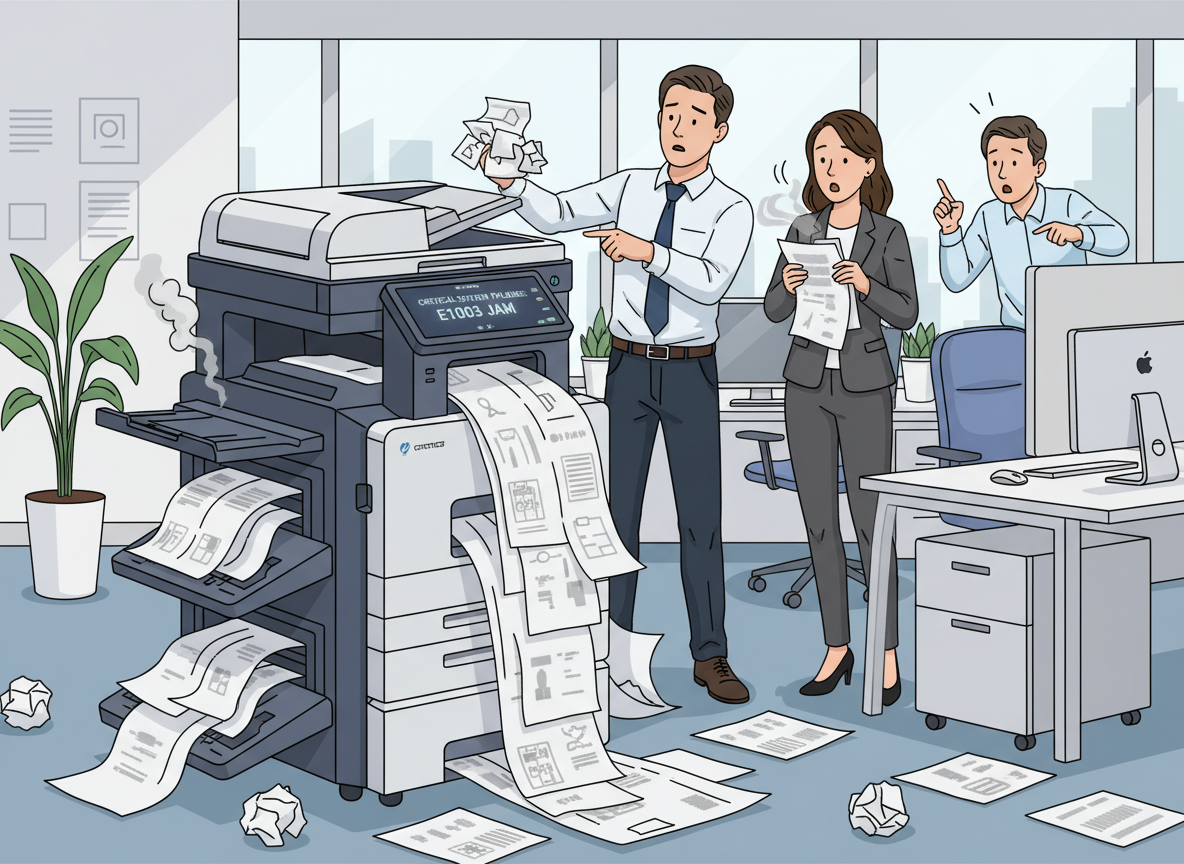
In the modern office, the photocopier or multifunction printer is an invisible workhorse. It sits in the corner, churning out contracts, proposals, and reports, and it’s only noticed when it stops working. For many businesses, the copier is a critical piece of infrastructure; when it fails, the ripple effect can be felt across the entire organisation. Invoices don’t get sent, contracts don’t get signed, and presentations don’t get printed.
Yet, like any complex piece of machinery, copiers rarely fail without warning. They communicate their distress through a series of subtle (and not-so-subtle) clues. Ignoring these early warning signs is akin to ignoring your car’s “check engine” light. You might save a few minutes today, but you risk catastrophic failure, expensive emergency repairs, and significant downtime tomorrow.
Based on insights from seasoned service technicians and best practices in facilities management, here are the five critical signs that your office copier needs immediate professional attention and what to do about them.
- 📉 A Significant and Unexplained Drop in Print Speed
- What You’ll Notice:
This is often one of the first signs of internal distress. You send a 20-page document to the printer and walk over to collect it, only to find that only three pages have emerged. The machine that used to reliably print 50 pages per minute now seems to be running at a crawl. It might pause for several seconds between pages, process data unusually slowly, or take an inexplicably long time to warm up from sleep mode. This slowdown is often inconsistent, making it difficult to pinpoint the exact cause. - What’s Likely Happening Under the Hood:
While software conflicts or driver issues can sometimes cause delays, a persistent and significant slowdown almost always points to a hardware problem.- Failing Hard Drive: Modern copiers are essentially network servers with print engines. They run operating systems and store data on internal hard drives. If the hard drive is beginning to fail, developing bad sectors or struggling to spin up, it will take longer to read and write print jobs. This is a critical warning, as hard drive failure often results in a complete loss of stored data, including scanned documents, address books, and custom settings.
- Insufficient or Failing Memory (RAM): If users frequently print complex graphics or high-resolution PDFs, the machine’s memory can become maxed out. The copier then has to work harder to process the data, slowing down the entire print queue. In some cases, the memory modules themselves can fail.
- Worn Mechanical Components: The motors and rollers that drive the paper through the machine have a finite lifespan. As they age and wear down, they cannot maintain the necessary speed and torque, causing the machine to slow down to compensate or to clear internal jams that occur due to the lack of speed.
- Why It Needs Immediate Attention:
A slow copier is more than just an annoyance; it’s a productivity killer. If five employees are waiting 10 minutes each for documents, you’ve lost nearly an hour of collective productivity. More importantly, if the root cause is a failing hard drive, you are on borrowed time. A sudden failure could mean losing digitally stored information that hasn’t been backed up elsewhere. Continuing to run the machine in this state can also exacerbate mechanical wear, turning a simple fix into a major overhaul. - What Other Companies Do:
Proactive companies don’t just reboot the machine and hope for the best. They immediately log a ticket with their service provider, providing specific examples. They note, *”This 20-page PowerPoint took eight minutes to print at 9:00 AM, whereas the same file printed in two minutes last week.”* This specific data helps the technician arrive prepared with the right diagnostic tools and replacement parts, reducing the time to resolution.
- 👻 Unusual Noises, Smells, or Ghost Images
- What You’ll Notice:
This category covers the sensory warnings that something is mechanically wrong.- Audible Signs: You start hearing grinding, screeching, or loud, repetitive clicking that is distinctly different from the normal, smooth whir of the machine. These sounds may be intermittent or continuous.
- Sense of smell Signs: A persistent burning smell, often described as an “electrical” or “acrid” odour, emanates from the machine. This is different from the faint “ozone” smell that is normal for office equipment.
- Visual Signs (Ghosting): You notice faint, repeating images of previous printouts appearing on new pages. For example, you print a new invoice, but you can see a faded shadow of a confidential contract from 50 pages ago in the background. This is known as “ghosting.”
- What’s Likely Happening Under the Hood:
- Mechanical Noise: Grinding or screeching almost always indicates worn-out gears, bushings, or bearings. These parts are designed to move with very tight tolerances, and when they wear, metal or plastic begins grinding against metal. This creates debris inside the machine and will eventually lead to a catastrophic seizure of moving parts.
- Burning Smell: This is a serious red flag that should never be ignored. It could be an overheating power supply, a failing circuit board, a motor burning out, or toner melting onto a hot roller (like the fuser) where it shouldn’t be. In worst-case scenarios, this poses a genuine fire hazard.
- Ghost Images: This is typically caused by a failure in the cleaning or discharging process. The drum unit, which holds the image, may not be fully discharging before the next image is formed. Alternatively, the cleaning blade that scrapes residual toner off the drum might be worn or broken. This indicates the core imaging process is malfunctioning.
- Why It Needs Immediate Attention:
The stakes here are high. A burning smell requires an immediate shutdown for safety reasons. Mechanical noises indicate that parts are actively destroying themselves; every minute you run the machine, you are creating more damage and more expensive repair bills. Ghosting, while less immediately dangerous, signals a decline in output quality that will worsen over time and can ruin professional documents. - What Other Companies Do:
They have a strict safety protocol. If they smell burning, they power down the machine at the wall immediately and call their support provider. For unusual noises, they stop using the machine to prevent further damage. For ghosting, they save a sample of the defective printout to show the technician. A picture or physical example is worth a thousand words when diagnosing imaging issues.
- 🔁 Persistent Paper Jams and Feed Problems
- What You’ll Notice:
The occasional paper jam is a fact of life in any office. But when jams become a daily, or even hourly occurrence, it’s a sign of a deeper problem. You might notice the machine jamming with paper it used to handle perfectly. It might pull multiple sheets at once (multi-feeds), or the paper might emerge wrinkled, curled, torn, or significantly misaligned on the page. - What’s Likely Happening Under the Hood:
Persistent feeding problems almost always point to worn or dirty components in the paper transport system.- Worn Rollers and Pads: The most common culprit is the “pick-up rollers” and “separation pads.” These rubber components are responsible for grabbing a single sheet of paper from the tray and feeding it into the machine. Over time, the rubber loses its grip (glazes over) and wears down. When this happens, the roller may struggle to pick up paper at all, or it may grab multiple sheets because the separation pad can no longer hold the second sheet back.
- Debris and Contamination: Over months and years, paper dust, toner particles, and debris can accumulate along the paper path. This can build up on sensors, causing them to misfire, or create physical obstructions that snag paper.
- Misaligned Trays: If paper trays have been knocked or are not properly adjusted to the paper size, they can feed paper at a slight angle, causing it to jam further inside the machine.
- Why It Needs Immediate Attention:
The most significant and costly risk here is collateral damage. When users have to forcibly pull jammed paper from deep inside the machine, they can easily scratch the sensitive surface of the imaging drum. A scratched drum will leave permanent marks on every single printout until it is replaced, a repair that is significantly more expensive than a simple roller replacement. Similarly, pulling paper through the fuser unit can damage the heat rollers. The constant frustration also destroys employee morale and wastes valuable time. - What Other Companies Do:
They track the frequency of jams. If a machine jams more than once a week under normal use, they schedule a service call. They also invest a few minutes in training staff on the correct way to clear a jam, teaching them to open access panels and gently remove paper in the direction of the paper path, rather than yanking it back out the way it came in.
- 📉 Consistently Poor Print Quality
- What You’ll Notice:
This is often the most frustrating sign because it seems like it should be a simple fix. You replace the toner cartridge, but the problem persists. Common quality defects include:- Streaks or Lines: Vertical or horizontal lines running down the page. These may be white (where toner isn’t sticking) or black/coloured (where toner is depositing where it shouldn’t).
- Fading or Patchiness: Print that is consistently light, or dark in some areas and light in others. Text might look “sparkly” or incomplete.
- Background Shading or Spots: A light gray “haze” or toner dust appears on the page where it should be white, or random spots and specks appear consistently in the same place on every page.
- What’s Likely Happening Under the Hood:
Quality issues point to problems deeper than an empty toner cartridge.- Drum Unit Failure: The imaging drum is the heart of the print process. If it becomes scratched (from jam clearing), worn out (end of life), or exposed to light, it will cause repeating marks, streaks, or faded areas on every page.
- Contaminated or Dirty Laser/LED Array: The laser “writes” the image onto the drum. If the glass protecting the laser lens becomes dusty or fogged with toner fumes, the image projected onto the drum will be weak or distorted, leading to faded print.
- Developer Unit Issues: In many copiers, the developer unit (which “brushes” toner onto the drum) can fail or the toner-to-developer mix can become imbalanced, leading to light print or backgrounding.
- Transfer Roller or Fuser Problems: The transfer roller applies the charge to pull toner onto the paper. If it’s dirty or failing, toner won’t transfer properly, causing patchiness. A damaged fuser roller can cause smudging or improper bonding of the toner to the page.
- Why It Needs Immediate Attention:
Poor print quality directly damages your company’s professional image. Sending out a proposal with a black streak through the cover page, or an invoice with faded text, looks unprofessional and can erode client confidence. Continuing to print through a failing drum or dirty laser will not fix the problem; it will only waste more toner and paper and can lead to more extensive damage as the machine tries to compensate. - What Other Companies Do:
They create a “failure folder.” The moment a quality issue appears, they keep a sample of the bad printout and note the date and time. When the technician arrives, they can hand them the folder. This simple act of documentation is the single most effective way to speed up diagnosis, as the technician can immediately see the pattern of the defect.
- 💻 Frequent Error Messages and Connectivity Issues
- What You’ll Notice:
The copier’s control panel is lit up with cryptic, alphanumeric error codes that don’t correspond to user-serviceable issues (like “add paper”). Furthermore, the machine becomes unreliable on the network. Users frequently can’t print from their computers, the “Scan to Folder” or “Scan to Email” functions fail repeatedly, or the copier simply disappears from the network list, requiring a reboot to come back online. - What’s Likely Happening Under the Hood:
- Internal Software/Firmware Crashes: Modern copiers run complex embedded operating systems. Frequent error codes can indicate software corruption or bugs that cause the system to crash or hang. These often require firmware updates to resolve.
- Failing Network Hardware: Intermittent connectivity that requires a reboot often points to a failing Network Interface Card (NIC) or the main controller board (logic board). The component may work for a while after a reboot but then fail as it heats up.
- Failing Hard Drive: As mentioned in point one, a failing hard drive can corrupt the system files required for network communication and user interface functions, leading to both error messages and network dropouts.
- Memory Corruption: If the machine’s memory is failing, it can corrupt the data being processed, leading to print errors and system crashes.
- Why It Needs Immediate Attention:
A copier that isn’t reliably connected to the network is a stranded asset. It stops being a productive tool and becomes a source of constant frustration. Employees waste time trying to troubleshoot, walking files to a different printer, or waiting for the machine to be rebooted. Ignoring these codes allows a minor software glitch to potentially snowball into a major logic board failure, or allows a hard drive to fail completely, taking your scanned data with it. - What Other Companies Do:
They become diligent recorders. When an error code pops up, they write it down exactly as it appears (e.g., “Error C-ABCD”). They note what the user was doing at the time (e.g., “scanning a 20-page document to email”). If the network drops, they note the time of day and how often it happens. This information is gold for a technician, helping them distinguish between a network infrastructure problem, a software glitch, and a failing hardware component.
The Cost of Inaction: A Final Thought
In the world of office equipment, the adage “a stitch in time saves nine” has never been truer. Proactive maintenance is always exponentially cheaper than reactive emergency repairs. A minor repair today, replacing a set of worn rollers, cleaning a laser lens, or updating firmware, might cost a few hundred pounds and an hour of downtime.
Ignoring the warning signs, however, can lead to a catastrophic failure that requires replacing the entire machine, costing thousands and bringing your office workflow to a standstill for days. If you notice one or more of these signs, the most cost-effective thing you can do is contact your service provider immediately. Listen to what your copier is telling you, it’s trying to save you money.