

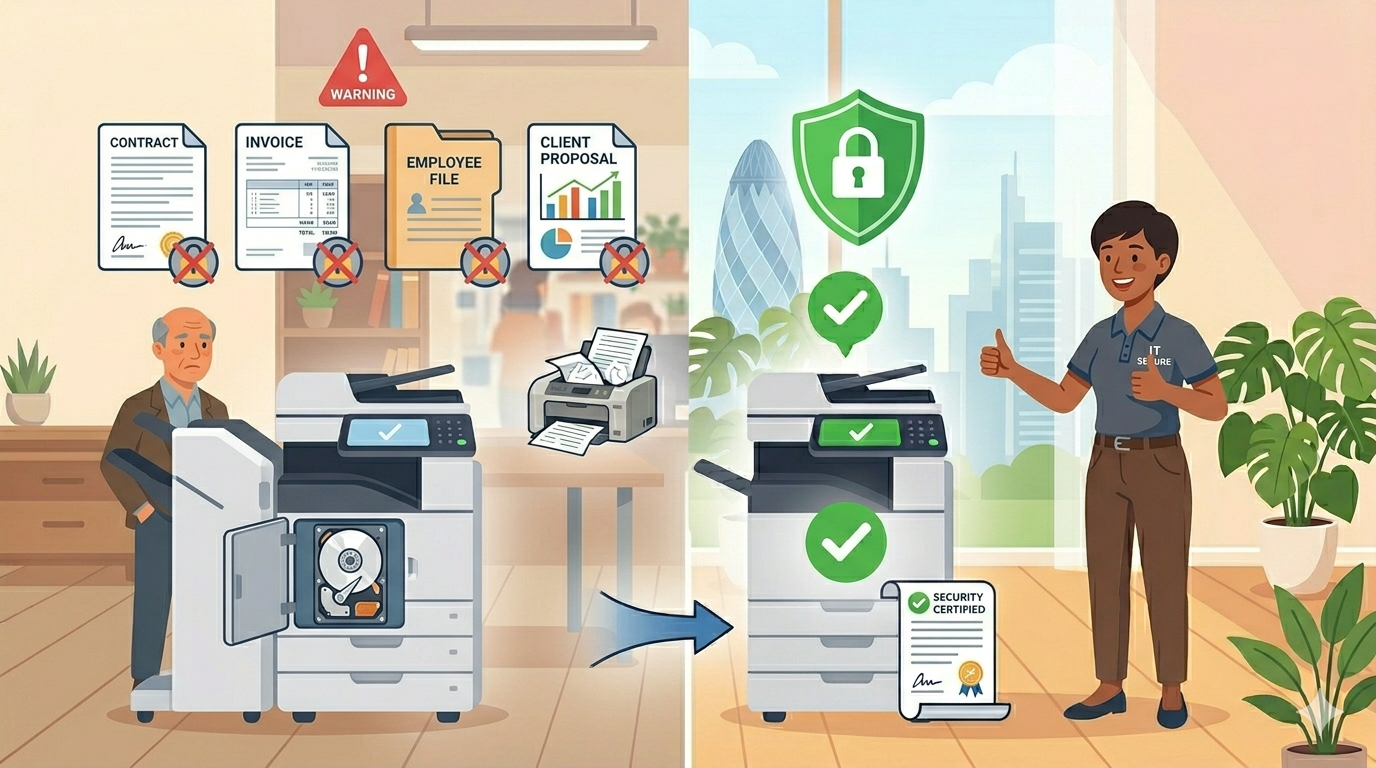
A practical guide. Because your copier knows more about your business than you think
Let’s be honest for a moment.
When you think about cybersecurity, what comes to mind?
Firewalls? Antivirus software? Strong passwords? Phishing emails?
Probably not your photocopier.
But here’s something that might surprise you: your office copier, printer, and scanner are computers. They have hard drives. They run software. They connect to your network. And they store every single document they print, copy, or scan.
Every contract. Every invoice. Every employee record. Every client proposal. Every financial statement.
All sitting on a hard drive inside a machine that most businesses forget about completely.
And that machine? It might be leased. It might be returned to a supplier someday. It might be sold on an online marketplace. With your data still on it.
In this article, I’ll walk you through the surprising role of cybersecurity in office equipment, the real risks you probably haven’t considered, and simple steps to protect your business.
Let’s dive in.
Part One: What Your Office Equipment Actually Stores
First, let’s understand what’s inside these machines.
Modern copiers and multifunction devices contain:
- A hard drive (or solid-state drive), just like a computer
- Memory (RAM), stores documents temporarily
- Network connectivity, connected to your business network
- Software, running an operating system, just like your computer
Every time someone uses the machine, data is stored:
| Action | What gets stored |
| Print a document | The entire document is stored on the hard drive |
| Copy a document | The entire document is stored on the hard drive |
| Scan a document | The entire document is stored on the hard drive |
| Fax a document | The entire document is stored on the hard drive |
| Email a document | The entire document is stored on the hard drive |
And here’s the scary part: that data doesn’t automatically disappear.
Unless the machine is specifically configured to overwrite or delete data, those documents remain on the hard drive. For years. Possibly forever.
Part Two: The Risks You Probably Haven’t Considered
Now let’s talk about what can go wrong.
Risk 1: The Returned Lease Machine
This is the most common risk. And it’s frighteningly widespread.
How it happens:
You lease a copier for three to five years. At the end of the lease, you return it to the supplier. The supplier refurbishes it and leases or sells it to another business.
But did anyone wipe the hard drive? Often, no.
The next business receives your old copier. And on that hard drive? Every document your business ever printed, copied, or scanned.
Real example (location-neutral):
A few years ago, a news organisation bought several used copiers from a liquidation sale. They hired a data recovery company to examine the hard drives. What did they find?
- Thousands of pages of payroll records
- Medical insurance claims with personal health information
- Police background check reports
- Legal documents from active court cases
All from the previous owners. All sitting on hard drives that were supposed to be “clean.”
Risk 2: The Network Intrusion
Your copier is connected to your network. That means it’s a potential entry point for attackers.
How it happens:
An attacker gains access to your copier (through unpatched software, default passwords, or a network vulnerability). From there, they can:
- Access every document stored on the hard drive
- Capture documents as they’re being printed or scanned
- Use the copier as a foothold to access other parts of your network
- Install malware that spreads to your computers and servers
Most businesses secure their computers and servers. They forget about the copier.
Risk 3: The Disgruntled Insider
Not all threats come from outside.
How it happens:
A temporary worker, contractor, or disgruntled employee has access to the copier. They know how to access the stored documents. They can walk away with copies of sensitive information without anyone knowing.
No unusual login attempts. No security alerts. Just someone using a machine they’re authorised to use.
Risk 4: The Unencrypted Scan
You scan a confidential document and email it to yourself. But is that email encrypted? Is the attachment stored securely on the copier’s hard drive?
How it happens:
Your team assumes that scan-to-email is secure. But without proper configuration, scanned documents can be:
- Stored unencrypted on the copier’s hard drive
- Sent over the network without encryption
- Intercepted by someone on the same network
- Accessed by anyone who knows how to find the scan folder
Risk 5: The Outdated Firmware
Your copier runs software (called firmware). Like any software, it has security vulnerabilities. And when those vulnerabilities are discovered, the manufacturer releases updates to fix them.
How it happens:
Your copier is three years old. The manufacturer released a critical security update 18 months ago. No one installed it. Your copier is now vulnerable to known attacks that have been publicly documented.
Attackers scan for machines with unpatched vulnerabilities. It’s like leaving your back door open and hoping no one walks in.
Part Three: What You Might Be Surprised To Learn
Here are the facts that catch most business owners off guard.
Surprise 1: Your copier’s hard drive can store hundreds of thousands of pages
A typical copier hard drive ranges from 40GB to 500GB. That’s enough to store millions of pages of documents. Your entire business history could be sitting on that drive.
Surprise 2: Deleting a document doesn’t remove it from the hard drive
When you delete a file on a computer, it’s not actually gone. The space is just marked as available. The data remains until it’s overwritten. The same is true for copiers.
Surprise 3: Most returned lease machines are not wiped
Studies have found that the majority of used copiers sold on secondary markets contain sensitive data from their previous owners. Hard drives are often not wiped or even formatted.
Surprise 4: Default passwords are a huge problem
Many copiers come with default administrator passwords (like “admin” or “1234”). And many businesses never change them. Anyone who knows the default password can access the machine’s settings and stored data.
Surprise 5: Your copier might be sending data to the cloud
Many modern copiers offer cloud connectivity. That’s convenient. But without proper configuration, documents you scan might be sent to cloud servers you don’t control, in locations you don’t know, with encryption you haven’t verified.
Part Four: Simple Steps to Protect Your Business
Now for the good news. Protecting your office equipment is not complicated or expensive. Here’s what to do.
Step 1: Encrypt the Hard Drive
Most modern copiers support hard drive encryption. This means that even if someone removes the drive, they can’t read the data without the encryption key.
What to do: Check if your copier supports encryption. If it does, enable it. If it doesn’t, consider replacing it with one that does.
Step 2: Enable Automatic Data Overwrite
This feature automatically overwrites data after each job. When a document is printed, copied, or scanned, it’s immediately overwritten with random data. Nothing is left behind.
What to do: Enable “data overwrite” or “data security” settings. Set it to overwrite after every job (not just when the machine is idle).
Step 3: Change Default Passwords
This is simple, free, and incredibly effective.
What to do: Change the administrator password on every networked printer and copier. Use a strong, unique password. Store it securely.
Step 4: Keep Firmware Updated
What to do: Check for firmware updates regularly (every 3–6 months). Or ask your service provider to handle this for you.
Step 5: Secure Network Connections
What to do:
- Put your printers and copiers on a separate network segment (VLAN) from your computers and servers
- Disable unnecessary services (FTP, Telnet, unused cloud connections)
- Use encrypted protocols (HTTPS, IPsec) where available
Step 6: Wipe Hard Drives Before Returning Leased Machines
This is critical. And it’s often overlooked.
What to do: Before returning any leased copier or printer:
- Use the machine’s built-in secure erase function (if available)
- Or have your IT provider wipe the drive using specialist tools
- Get written confirmation from your supplier that the drive has been wiped
Pro tip: Some leases require you to return the machine with the hard drive intact. But that doesn’t mean you can’t wipe it first. Wiping the data doesn’t damage the drive.
Step 7: Train Your Team
What to do: Add office equipment security to your regular cybersecurity training. Cover:
- Never leave sensitive documents in the output tray
- Log out of the machine after use (if it supports user authentication)
- Report any unusual behaviour (error messages, slow performance, unexpected restarts)
Part Five: What to Ask Your Supplier
If you work with a supplier for service, maintenance, or leasing, here’s what to ask them.
Questions about security features:
- Does this machine support hard drive encryption?
- Does it support automatic data overwrite?
- How are firmware updates handled?
Questions about leased equipment:
- What is your process for wiping hard drives on returned machines?
- Can you provide written confirmation that the drive was wiped?
- What happens to the hard drive when the machine is decommissioned?
Questions about service access:
- Do your technicians have remote access to the machine?
- How is that access secured?
- What data can they see during remote support?
A good supplier will answer these questions clearly. A bad one will be vague or defensive.
Part Six: Examples (Location-Neutral)
Here are a few examples of businesses that discovered the hard way, or avoided disaster, through office equipment cybersecurity.
Example 1: The Leased Copier
A professional services firm returned five leased copiers at the end of a three-year term. They assumed the supplier would wipe the hard drives. They didn’t ask. The supplier didn’t offer.
Six months later, the firm learned that the supplier had sold the copiers to a refurbisher without wiping them. The hard drives contained client contracts, financial statements, and employee records.
Fortunately, the refurbisher was reputable and wiped the drives before reselling. But the firm had no way of knowing that. They got lucky.
What they do now: They wipe every hard drive themselves before returning any leased machine. They get written confirmation from the supplier. They no longer assume.
Example 2: The Default Password
A small business never changed the administrator password on their networked copier. The default password was “admin.” Anyone on their network could access the machine’s settings and stored documents.
An IT consultant discovered this during a routine security review. The business had no idea. The copier had been vulnerable for years.
What they did: Changed the password immediately. Enabled encryption and data overwrite. Added the copier to their regular security review process.
Example 3: The Unencrypted Scan
A healthcare practice used scan-to-email to send patient records between offices. The scans were not encrypted. The email was not secure. Patient data was transmitted in clear text across the internet.
A security audit revealed the risk. The practice had no idea they were violating data protection regulations.
What they did: Configured their copiers to use encrypted connections. Implemented a secure patient portal for document sharing. Trained staff on secure document handling.
Part Seven: A Simple Security Checklist
Use this checklist to assess your office equipment security.
Hard Drive Security
- Does the copier have hard drive encryption enabled?
- Is automatic data overwrite enabled (after every job)?
- Do you have a process for wiping drives before returning leased machines?
Access Security
- Have you changed the default administrator password?
- Does the machine require user authentication (PIN, card, or code)?
- Are unnecessary services (FTP, Telnet) disabled?
Network Security
- Is the copier on a separate network segment from computers and servers?
- Are firmware updates applied regularly (within 90 days of release)?
- Are scan-to-email connections encrypted?
Process Security
- Is office equipment included in your cybersecurity training?
- Do you have a process for reporting unusual machine behaviour?
- Have you asked your supplier about their security practices?
Final Thoughts
Your office copier knows more about your business than most of your employees. It sees every contract, every invoice, every client record, every employee file. And most businesses never think about securing it.
The good news is that the fixes are simple, affordable, and effective.
Encrypt the hard drive. Enable data overwrite. Change default passwords. Keep firmware updated. Wipe drives before returning leased machines. Train your team.
None of this is complicated. It’s just paying attention to something most businesses ignore.
And if you’d like a friendly, no-pressure chat about office equipment security, whether that’s checking your current setup, choosing a secure machine, or just honest advice, just reach out.
We’re independent. We’re here to help. And we won’t sell you things you don’t need.