

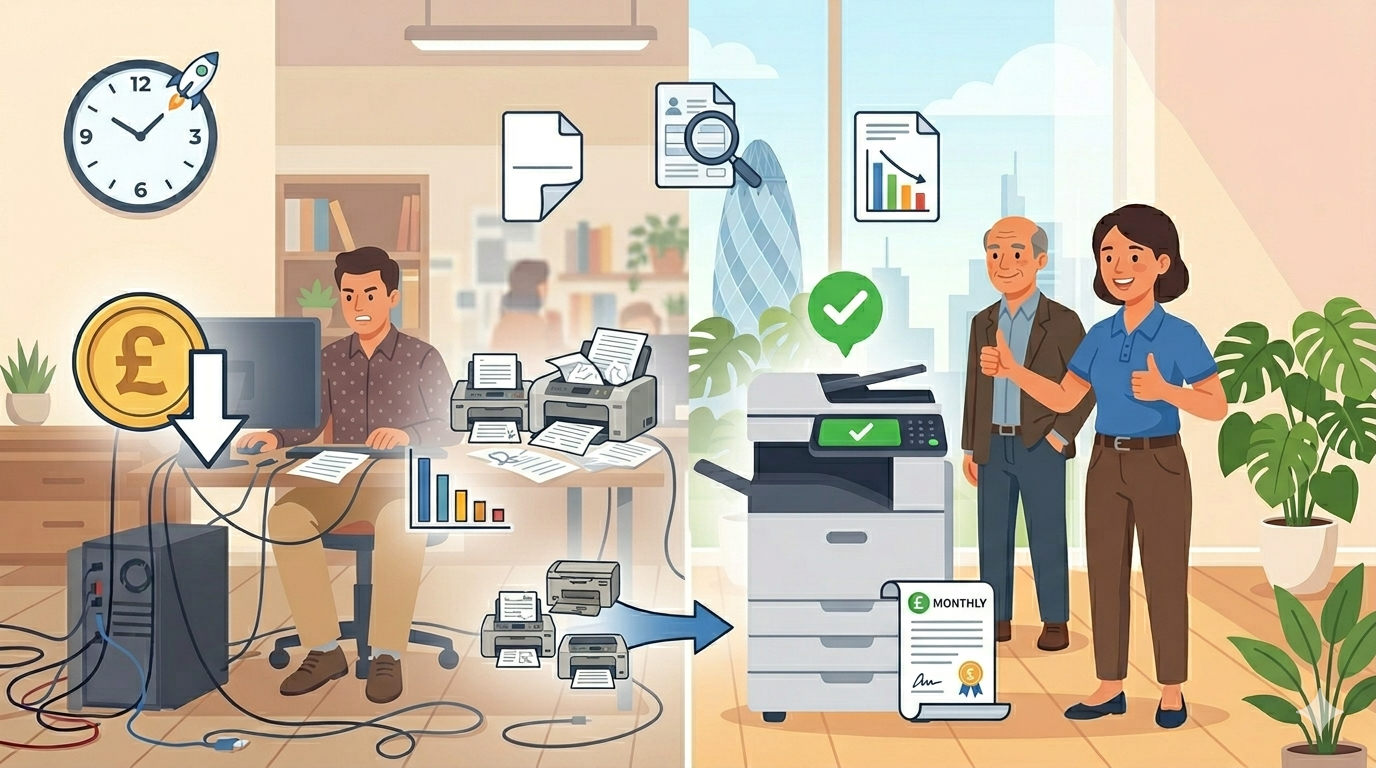
A practical guide. Because your equipment should work for you, not against you
Let’s be honest for a moment.
Most businesses don’t think about their office technology as a way to save money. They think about it as a cost. Something you have to buy. Something that breaks. Something that needs servicing.
But here’s the thing: the right technology, used the right way, doesn’t just cost you less. It actively saves you money. And time. And stress.
The trick is knowing where to look.
In this article, I’ll walk you through practical, proven ways to use office technology to save both time and money. No jargon. No hard sell. Just honest, actionable advice that you can implement today, this week, or this month.
Let’s dive in.
Part One: The Mindset Shift
Before we get into specific tips, let’s talk about how you think about office technology.
The old mindset: Technology is an expense. Buy the cheapest thing that works. Replace it when it breaks.
The new mindset: Technology is an investment. The right technology saves time. Time is money. Better technology saves more than it costs.
This isn’t theory. It’s simple maths.
If a new printer costs £500 but saves your team five hours a week, and your team’s time is worth £20 per hour, that printer pays for itself in five weeks. Everything after that is pure saving.
If a new copier costs £2,000 over three years but reduces paper waste by 30% and eliminates service calls, it’s not an expense. It’s a return on investment.
Start thinking this way, and everything changes.
Part Two: Time-Saving Tech Tips
Let’s start with the big one: time. Because time is the one thing you can’t buy more of.
Tip 1: Automate Repetitive Tasks
The problem: Your team spends hours on tasks that a machine could do in seconds.
The solution: Look for technology that automates the boring stuff.
Examples:
- Print presets: Save common print settings (double-sided, colour, stapled) as presets. One click instead of six.
- Scan profiles: Create scan-to-email, scan-to-folder, and scan-to-cloud profiles. One touch instead of navigating menus every time.
- Job memory: Save complex copy jobs (like booklets or reports) as named jobs. Recall them instantly.
Time saved: 30 seconds per job × 20 jobs per day × 5 days = 50 minutes per week. Nearly an hour.
Tip 2: Use Double-Sided Printing as Default
The problem: Your team prints single-sided out of habit. They waste paper, and they waste time flipping pages over for double-sided jobs.
The solution: Set double-sided (duplex) as the default on all printers and copiers.
Time saved: No more manually selecting duplex. No more reprinting because someone forgot to select it. And half the paper cost.
Money saved: 50% less paper. For a busy office, that’s hundreds of pounds a year.
Tip 3: Implement Follow-Me Printing
The problem: People send print jobs to the wrong printer. They walk to the wrong floor. They reprint because the job went somewhere else.
The solution: Follow-me printing (sometimes called pull printing or secure release). You send your job to a single queue. You walk up to ANY printer, authenticate, and your job prints.
Time saved: No more walking to the wrong printer. No more reprinting lost jobs. No more “which printer did I send that to?”
Example: A professional services firm estimated their team lost 10 minutes per day to printer confusion. Follow-me printing eliminated that completely. That’s 40 hours per year per person.
Tip 4: Create Scan Templates for Common Workflows
The problem: Every time someone scans, they navigate through menus. Scan to email. Enter address. Choose resolution. Choose file type. Every. Single. Time.
The solution: Create scan templates for common workflows.
Examples:
- “Scan to client” (high resolution, PDF, email to client)
- “Scan to accounts” (lower resolution, searchable PDF, save to finance folder)
- “Scan to HR” (high resolution, PDF, save to HR folder, add password)
Time saved: 60 seconds per scan × 20 scans per day = 20 minutes per day. That’s nearly two hours per week.
Tip 5: Use Mobile Printing
The problem: Someone is out of the office. A client needs a document urgently. They have to call the office, ask someone to print it, and figure out how to get it to the client.
The solution: Mobile printing. Print directly from your phone or laptop, from anywhere, to any printer in your office.
Time saved: No more “can you print this for me?” No more waiting. No more couriers.
Tip 6: Consolidate Devices
The problem: Your office has five different printers, each from a different brand, each with different drivers, different interfaces, different ways of doing things. Your team wastes time remembering which printer does what.
The solution: Consolidate to fewer, better devices. One or two multifunction copiers that do everything.
Time saved: Less walking. Less confusion. Less “where do I send this?” Less IT time managing multiple drivers.
Money saved: Fewer service contracts. Fewer toner types to stock. Less energy usage.
Part Three: Money-Saving Tech Tips
Now let’s talk about direct cost savings.
Tip 1: Track Your Printing
The problem: You have no idea who is printing what, how much, or in colour.
The solution: Enable print tracking and reporting. Most modern copiers have this built in.
What you’ll learn:
- Which departments print the most
- Who prints in colour (and whether they need to)
- How many pages per month (actual, not estimated)
- When printing peaks (so you can plan)
What you can save:
- Eliminate colour printing for internal documents (saves 30–50% on toner)
- Identify unused printers and remove them (saves service contracts)
- Set print quotas for heavy users (reduces waste)
Example: A small business enabled print tracking and discovered that one department was printing 40% of all colour pages, for internal drafts. They switched that department to black-and-white default and saved £1,200 per year on toner.
Tip 2: Use Print Rules and Restrictions
The problem: Your team prints in colour when they don’t need to. They print single-sided when double-sided would work. They print 50-page documents and take the first page.
The solution: Set print rules.
Examples:
- Force double-sided printing for all documents over two pages
- Restrict colour printing to specific users or departments
- Set a timeout for uncollected print jobs (they’re deleted after a few hours)
- Require confirmation for large jobs (over 50 pages)
Money saved: 20–40% reduction in paper and toner costs is typical.
Tip 3: Move to Managed Print Services
The problem: You buy toner when you run out (usually at the most expensive price). You call for service when something breaks (emergency rates). You have no predictability.
The solution: A managed print contract. You pay a fixed monthly fee that covers the equipment, service, and all toner.
What you save:
- No surprise bills (predictable monthly cost)
- Toner is included (no more emergency purchases)
- Service is included (no more call-out charges)
- The supplier monitors your usage and sends toner before you run out
Example: A business was spending £300 per month on toner and service, unpredictably. They moved to a managed print contract for £220 per month, fixed. They saved £80 per month immediately, plus hours of time spent ordering supplies and arranging service.
Tip 4: Use Genuine or High-Quality Compatible Toner
The problem: Cheap compatible toner damages your equipment and produces poor quality prints. But genuine toner is expensive.
The solution: Use genuine toner OR high-quality compatible from a trusted supplier. Avoid the very cheapest options.
Why it matters:
- Cheap toner can leak, damaging internal components
- Cheap toner produces faded, streaky prints (wasted paper and reprints)
- Cheap toner can void your warranty
- Good quality compatible toner often can perform as well as genuine at 30–50% less cost.
Money saved: 30–50% on toner costs, without damaging your equipment.
Tip 5: Reduce Paper Waste
The problem: You’re buying more paper than you need. And paying to store it. And paying to dispose of it.
The solution: Simple habits that add up.
Quick wins:
- Set double-sided as default (cuts paper use in half)
- Print multiple pages per sheet (2-up, 4-up) for internal drafts
- Use recycled paper (often cheaper than premium virgin paper)
- Go digital where possible (share documents instead of printing)
Money saved: A busy office can cut paper costs by 40–60% with these simple changes.
Tip 6: Right-Size Your Equipment
The problem: You have a high-volume production copier in a small office. Or a small desktop printer trying to handle a busy team’s workload. Both waste money.
The solution: Match the equipment to your actual volume.
How to right-size:
- Track your monthly print volume for 2–3 months
- Compare to the machine’s recommended duty cycle
- If you’re printing far below the machine’s capacity, you’re paying too much
- If you’re printing far above, you’re wearing it out too fast
Money saved: A smaller, cheaper machine that matches your actual volume saves upfront cost, service costs, and energy.
Part Four: Quick Wins You Can Implement Today
These cost nothing (or very little) and save time and money immediately.
Quick Win 1: Set Double-Sided as Default
Time to implement: 2 minutes
Cost: Free
Saving: 50% less paper
Quick Win 2: Create One Scan Template
Time to implement: 5 minutes
Cost: Free
Saving: 1 minute per scan
Quick Win 3: Enable Print Tracking
Time to implement: 10 minutes
Cost: Free (built into most copiers)
Saving: Visibility into where your money is going
Quick Win 4: Change Default Print Quality to “Draft”
Time to implement: 2 minutes
Cost: Free
Saving: 30% less toner on internal documents
Quick Win 5: Remove Unused Printers
Time to implement: 15 minutes
Cost: Free
Saving: Less maintenance, fewer toner types, less energy
Quick Win 6: Create a “Think Before You Print” Sign
Time to implement: 5 minutes
Cost: Free
Saving: Reduced waste through awareness
Part Five: Real Examples (Location-Neutral)
Here are a few examples of businesses that saved significant time and money through smarter office tech.
Example 1: The Legal Practice
A small legal practice had no visibility into their printing. They knew they spent a lot on paper and toner, but they didn’t know where it was going.
They enabled print tracking and discovered that one paralegal was printing every document in colour, including internal drafts and research. The paralegal didn’t realise they could print in black and white.
The fix: They set black and white as the default for all users, with colour requiring a manual override. Paper and toner costs dropped by 35% within three months.
Time saved: None directly. Money saved: £2,000 per year.
Example 2: The Marketing Agency
A creative agency had five different printers scattered across their office. Each used different toner. Each had a different service contract. Staff wasted time walking between printers, trying to remember which one did what.
The fix: They consolidated to two modern multifunction copiers, one on each floor. They added follow-me printing so staff could send to one queue and print at the nearest machine.
Time saved: Staff estimated they saved 15 minutes per day, each. For a 15-person agency, that’s nearly 4 hours per day, 20 hours per week.
Money saved: They eliminated three service contracts, reduced toner costs by standardising on one type, and cut paper waste by 30%.
Example 3: The Accountancy Firm
An accountancy firm was spending £400 per month on toner and service, unpredictably. Some months were low. Some months were double. They never knew what was coming.
The fix: They moved to a managed print contract with a fixed monthly fee of £280, including all toner and service.
Money saved: £120 per month immediately, plus no more surprise bills. And they stopped spending staff time ordering toner and arranging service calls.
Example 4: The Healthcare Practice
A healthcare practice was printing everything single-sided out of habit. Patient forms, internal memos, appointment letters, all single-sided. They were buying reams of paper every week.
The fix: They set double-sided as the default on all printers. They also set draft quality as the default for internal documents.
Money saved: Paper usage dropped by 45%. Toner usage dropped by 25%. Combined saving of over £1,500 per year.
Time saved: No time saved directly, but they stopped running out of paper mid-week and sending someone to the stationery shop.
Part Six: The 30-Day Savings Challenge
Here’s a simple challenge for you and your team.
Week 1: Measure
- Track how many pages you print
- Note how many are colour vs black and white
- Note how many are single-sided vs double-sided
- Note any time wasted (waiting for prints, walking to printers, reprinting mistakes)
Week 2: Implement quick wins
- Set double-sided as default
- Set black and white as default (colour requires manual override)
- Create one scan template for your most common workflow
- Enable print tracking
Week 3: Measure again
- Track the same metrics as Week 1
- Compare the difference
Week 4: Plan bigger changes
- Based on your data, what’s the next step?
- Consolidate printers? Move to managed print? Replace an old machine?
By the end of 30 days, you’ll have real data on what you’re saving, and a clear plan for saving more.
Final Thoughts
Your office technology isn’t just a cost. Used right, it’s a tool for saving both time and money.
Set double-sided as default. Create scan templates. Enable print tracking. Consolidate devices. Move to managed print. Use print rules.
None of this is complicated. Most of it is free. And all of it adds up to real savings, in time, money, and team morale.
Start with one thing. The quickest win. The biggest frustration. Fix that. Then move to the next.
And if you’d like a friendly, no-pressure chat about using office tech to save time and money, whether that’s tracking your printing, choosing a managed print contract, or just honest advice, just reach out.
We’re independent. We’re here to help. And we won’t sell you things you don’t need.