

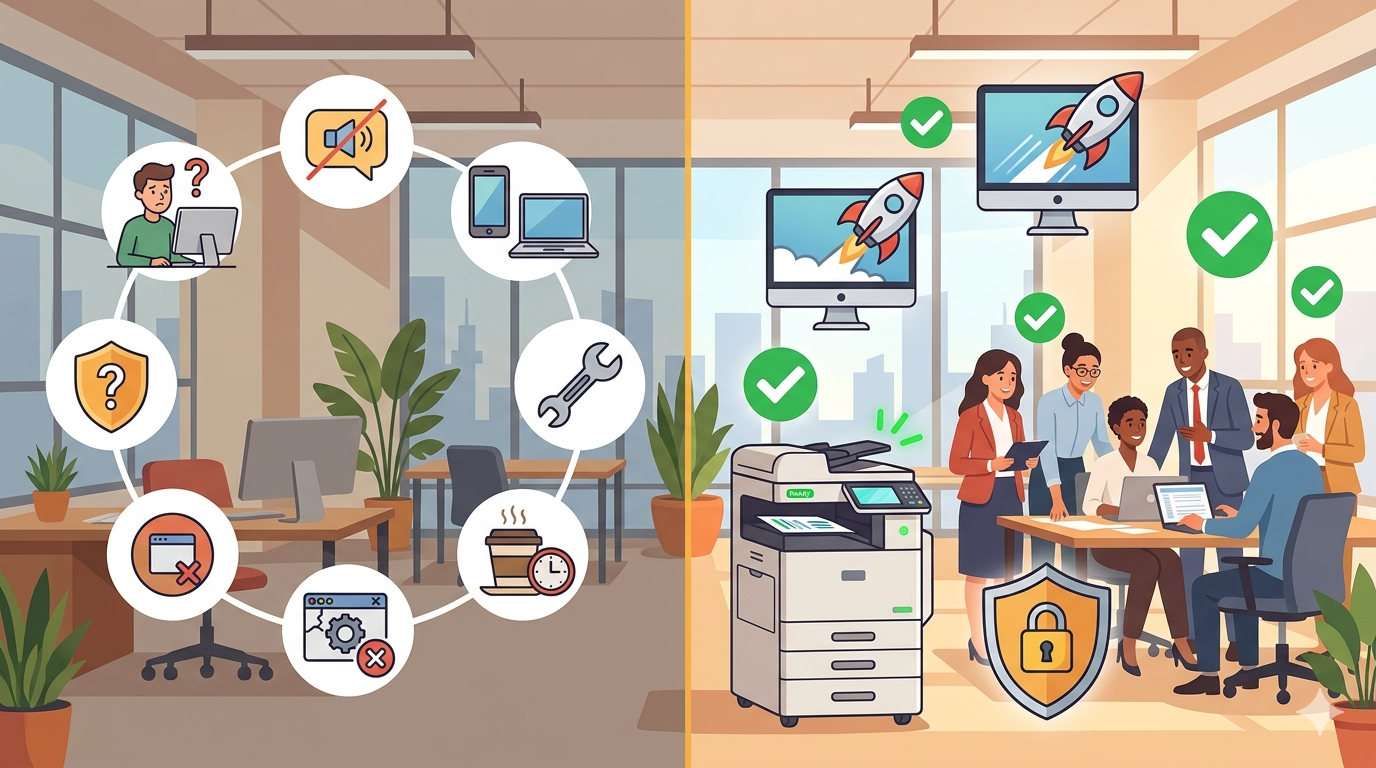
A practical guide, because falling behind happens slowly, then suddenly.
Let’s be honest for a moment.
Technology doesn’t usually fail in a dramatic, headline-making way. The server doesn’t explode. The computers don’t catch fire. The copier doesn’t melt into a puddle molten lava.
Instead, technology fades. Slowly. Quietly. Almost without you noticing.
The computer that used to boot in 30 seconds now takes three minutes. But you got used to it. You make coffee while you wait.
The printer that used to be reliable now jams once a week. But you’ve learned to work around it. You send jobs a few minutes earlier, just in case.
The scanner that used to work perfectly now fails to connect to email every few days. But you’ve found a workaround. You scan to USB instead.
Here’s the problem: while you’re adapting to outdated technology, your competitors are leaving you behind. Their teams are faster. Their documents look more professional. Their staff are less frustrated.
In this article, I’ll walk you through the seven clearest signs that your office needs a tech upgrade. No jargon. No hard sell. Just honest, practical signs to watch for, and what to do about each one.
Let’s dive in.
Sign 1: Your Team Has Stopped Reporting Problems
This is the most dangerous sign. And it’s the easiest to miss.
What it looks like:
- You used to hear about printer jams, slow computers, and scanning errors
- Now you don’t
- But the problems haven’t gone away
What’s really happening:
Your team has given up. They’ve stopped reporting issues because nothing ever changes. They’ve developed workarounds, some efficient, some painfully slow, and they’ve just accepted that “this is how things are.”
Why it matters:
When people stop reporting problems, two things happen. First, you lose visibility into what’s actually happening in your office. Second, and more importantly, your team starts mentally checking out. “If they don’t care enough to fix the printer, why should I care enough to stay late?”
What to do:
Ask your team directly, and ask in a way that invites honesty.
Try saying: “I want to know about every tech frustration you have, no matter how small. I’m not promising to fix everything overnight, but I need to know what’s actually happening.”
Then listen. Don’t defend. Don’t explain. Just listen.
The upgrade sign: If you hear about problems you didn’t know existed, your team has stopped telling you. That’s a sign you need to act.
Sign 2: Staff Are Using Personal Devices for Work
This one hides in plain sight.
What it looks like:
- People printing from personal laptops because “the office computers are too slow”
- Staff taking photos of documents with their phones because “the scanner never works”
- Team members emailing work documents to personal email addresses so they can work from home
What’s really happening:
Your official equipment is failing your team. So they’re finding their own solutions. On the surface, this looks like resourcefulness. And it is. But it’s also a huge red flag.
Why it matters:
- Security: Personal devices aren’t managed, monitored, or secured like office equipment
- Data loss: Work documents living on personal devices can leave with staff members
- Compliance: Many industries have rules about where client data can be stored
- Productivity: Workarounds are rarely as efficient as things working properly
What to do:
Don’t punish the behaviour. That will just drive it underground. Instead, ask: “What’s making you use your own devices? What would need to change for you to use the office equipment instead?”
Then fix those things.
The upgrade sign: If your team is regularly using personal devices for work tasks, your office technology isn’t meeting their needs.
Sign 3: You’re Spending More Time Fixing Than Using
This is the “mechanic’s car” problem, when your equipment is in the repairers so often that you barely get to use it.
What it looks like:
- Regular service calls (six or more per year for a single device)
- The same problems recurring (the same jam, the same error code, the same scan failure)
- Staff have memorised the “fix it” routine (reboot, unplug, jiggle, pray)
What’s really happening:
Your equipment is ageing out. Components wear down. Newer software and operating systems don’t play nicely with older hardware. The cost of keeping it running is approaching (or exceeding) the cost of replacing it.
Why it matters:
Every minute spent fixing equipment is a minute not spent on your actual business. And every recurring problem is a sign that the underlying issue hasn’t been addressed, just temporarily patched.
What to do:
Track your service calls for three months. Note:
- How many calls?
- What problems?
- How much downtime?
- How much did it cost?
Then compare that to the cost of replacing the problematic equipment. You might be surprised.
The upgrade sign: If you’re calling for service more than once every two months on the same device, it’s time to have a serious conversation about replacement.
Sign 4: Your Computers Take “Coffee Break” Time to Start
This one is so common that most people don’t even notice it anymore.
What it looks like:
- Computers take 3–5 minutes to boot up
- Applications take 30 seconds or more to open
- Switching between programs causes visible lag
- “Spinning wheel” or “hourglass” is a daily experience
What’s really happening:
Your computers are old. Not just in years, in capability. A five-year-old computer might have been fine when it was new, but software has become more demanding. Operating systems have been updated. Security software runs in the background. Websites are heavier.
All of that adds up to a slow, frustrating experience.
Why it matters:
Let’s do the maths.
A team member who waits 10 minutes per day for their computer to be ready is losing 40 hours per year, a full working week. Multiply that by ten people, and you’ve lost ten weeks of productivity.
And that’s just boot time. Add in application lag, file saves, and printing delays, and the number grows.
What to do:
Time it. Literally. Ask a few team members to time how long it takes from pressing the power button to being able to work.
If it’s consistently over two minutes, you have a problem.
The upgrade sign: If your team routinely starts their computer and then goes to make coffee or check their phone while waiting, your computers are too slow.
Sign 5: Your “New” Software Won’t Run Properly
This is the sign that sneaks up on you.
What it looks like:
- You try to install a new piece of software (accounting, CRM, design, project management)
- It runs slowly or crashes frequently
- The IT person says “your computers don’t meet the minimum requirements”
- You buy the software anyway and hope for the best
What’s really happening:
Your hardware has fallen behind the software curve. Every year, software becomes more capable, and more demanding. Your five-year-old computer might have been fine for the software you bought five years ago. But today’s software expects more.
Why it matters:
You’re not just fighting old equipment. You’re being locked out of better ways of working. Newer software often includes features that save time, improve security, and enable collaboration. If your equipment can’t run it, you miss out.
What to do:
Before buying any new software, check the system requirements. Compare them to your current equipment. If there’s a significant gap, factor hardware upgrades into your budget.
The upgrade sign: If you’re regularly hearing “this software won’t run on my computer,” your hardware is holding you back.
Sign 6: Your Security Setup Is “Probably Fine”
This is the scariest sign, because you might not know it’s there until it’s too late.
What it looks like:
- You can’t remember when you last updated your firewall
- Your antivirus software is the free version that came with the computer
- Staff use the same password for everything
- You don’t have a backup system that you’ve actually tested
- You’ve never had a security audit
What’s really happening:
You’re running on luck. And luck runs out.
Cyber attacks don’t just happen to big corporations. Small and medium businesses are actually more attractive targets because they often have weaker defences.
Why it matters:
The average cost of a security breach for a small business can run into tens of thousands of pounds, direct costs, downtime, lost clients, reputational damage. Some businesses never recover.
What to do:
Start with a simple security review:
- Are all devices running supported operating systems?
- Is antivirus installed and updating?
- Are backups happening and tested?
- Do staff use strong, unique passwords?
- Is there a process for updating software?
If you can’t answer these questions confidently, bring in someone who can help.
The upgrade sign: If your security is based on “probably fine” rather than “definitely secure,” you need an upgrade, not just of equipment, but of approach.
Sign 7: New Team Members Struggle to Get Started
This is the sign that affects your ability to grow.
What it looks like:
- New hires spend days waiting for equipment to be set up
- Their computers are slow and frustrating from day one
- They ask “is it always like this?” (and the answer is yes)
- Good candidates choose to work elsewhere
What’s really happening:
Your onboarding process is broken because your equipment is old. Every new person needs a computer, a printer connection, access to files, and if those systems are slow or unreliable, the new person’s first impression is terrible.
Why it matters:
First impressions matter. A new hire who spends their first week fighting with slow equipment is already thinking about leaving. And in a competitive market for talent, that’s a risk you can’t afford.
What to do:
Ask your most recent new hire (anonymously, if needed): “What was your experience getting set up? What frustrated you most?”
Then fix those things.
The upgrade sign: If onboarding new team members is consistently painful, your technology is letting you down before they’ve even done any real work.
The 7 Signs at a Glance
Here’s your quick-reference checklist:
| Sign | What to look for | What to do |
| 1. Team stopped reporting problems | You don’t hear about issues anymore | Ask directly. Listen without defending |
| 2. Personal devices for work | Staff using own laptops, phones | Ask why. Fix root causes |
| 3. More fixing than using | 6+ service calls per year | Compare repair costs to replacement |
| 4. Coffee-break boot times | 2+ minutes to start working | Time it. Calculate productivity loss |
| 5. New software won’t run | “Doesn’t meet minimum requirements” | Check system requirements before buying |
| 6. Security “probably fine” | Can’t answer basic security questions | Get a security review |
| 7. Onboarding struggles | New hires frustrated from day one | Ask recent hires about their experience |
What to Do If You Spot 2+ Signs
If you’re nodding along to two or more of these signs, here’s a simple action plan.
Step 1: Document the Problems
For one week, keep a log. Every time someone complains about slow technology, a printer jam, a scanning error, or any other issue, write it down.
At the end of the week, you’ll have data, not just feelings.
Step 2: Prioritise by Impact
Not all upgrades are equal. Prioritise based on:
- Frequency: How often does this problem happen?
- Impact: How much time or money does it waste?
- Frustration: How much does it annoy your team?
Step 3: Get a Professional Assessment
Bring in someone who can look at your whole technology setup, computers, printers, network, security, backups. Ask for:
- What’s working well
- What’s at risk of failing
- What should be replaced now
- What can wait
Step 4: Budget for the Upgrade
Technology upgrades aren’t free. But neither is lost productivity, staff turnover, and security breaches.
Work out the return on investment. If a £5,000 upgrade saves you £15,000 in lost time over two years, that’s not an expense, it’s an investment.
Step 5: Communicate with Your Team
Tell your team what you’re doing. “We’ve noticed the technology is slowing us down. Here’s what we’re planning to fix, and here’s the timeline.”
When people see that you’ve heard them and you’re acting, morale improves, even before the new equipment arrives.
Real Examples (Location-Neutral)
Here are a few examples of businesses that spotted these signs and acted.
Example 1: The Accountancy Firm
A small accountancy firm noticed that staff were regularly using personal laptops for client work. When asked why, the team said the office computers were too slow to run their tax software.
The firm replaced five ageing computers with modern machines. The cost was modest. The result? Staff stopped using personal devices. Work got done faster. And the firm avoided a potential data security issue.
Example 2: The Marketing Agency
A creative agency realised they were spending more time fixing their main printer than using it. Service calls were happening every six weeks, always the same jam, always the same fix.
They replaced the printer with a modern, reliable model. Service calls dropped to once a year. The office manager estimated she saved 30 hours a year just from not calling for service.
Example 3: The Healthcare Practice
A medical practice couldn’t remember the last time they’d tested their backups. When a staff member accidentally deleted a folder of patient records, they discovered the backup hadn’t run for months.
Fortunately, the files were recoverable through other means. But the practice learned a hard lesson. They now have automated, tested backups and a clear security protocol.
Final Thoughts
Technology doesn’t usually fail in a dramatic way. It fades slowly. Quietly. Almost without you noticing.
But the signs are there if you know what to look for.
Your team has stopped reporting problems. Staff are using personal devices. You’re spending more time fixing than using. Computers take forever to start. New software won’t run. Security is “probably fine.” New hires struggle to get started.
Any one of these signs is worth paying attention to. Two or more means it’s time to act.
The good news? You don’t need to replace everything at once. Start with the biggest pain point. Fix that. Then move to the next. Small, steady improvements add up faster than you think.
And if you’d like a friendly, no-pressure chat about your current technology, whether that’s computers, printers, copiers, or your whole setup, just reach out.
We’re independent. We’re here to help. And we won’t sell you things you don’t need.