

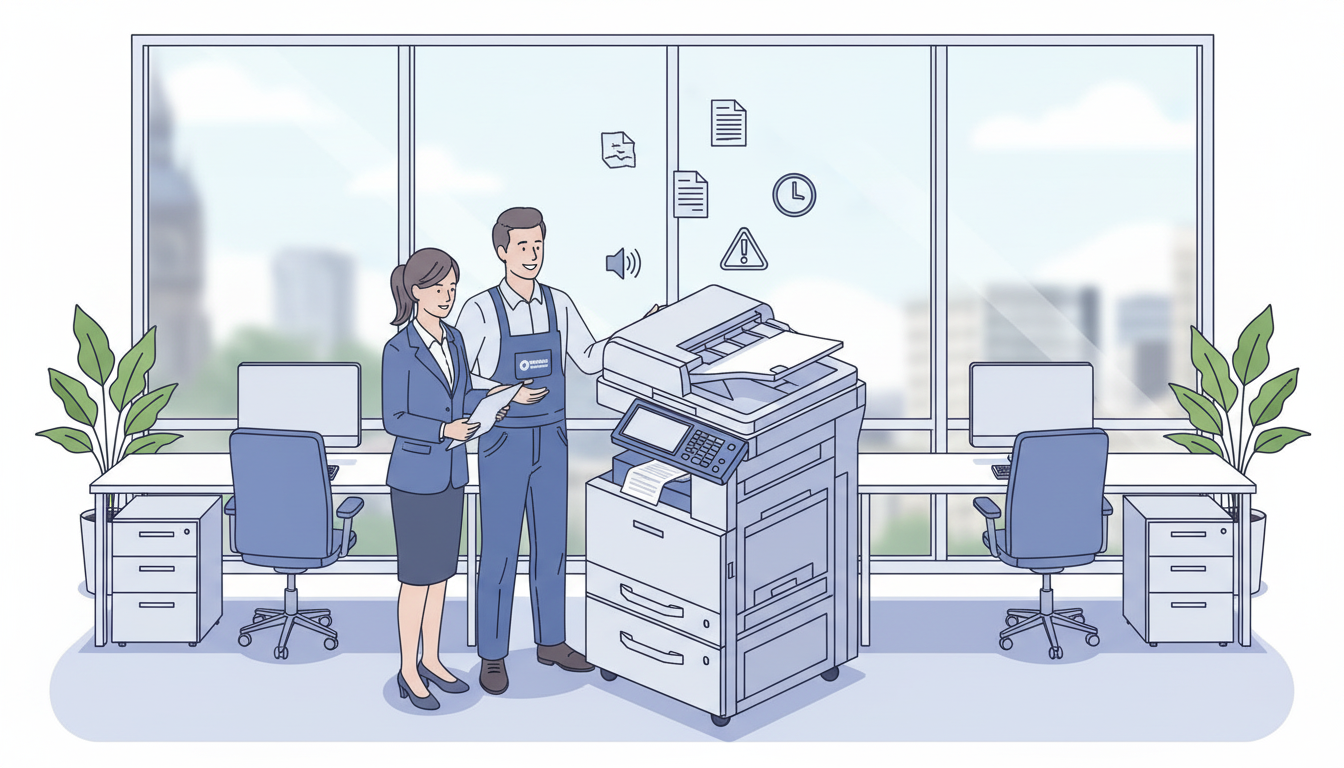
A practical guide, because your copier shouldn’t ruin your day
Let’s be honest for a moment. Your office copier isn’t anyone’s favourite piece of equipment. You don’t walk into work thinking, “I can’t wait to see that multifunctional device today.”
But here’s the thing, you definitely notice it when something goes wrong.
One minute you’re quietly printing a 20-page client proposal due in an hour. The next, the screen is flashing an error code that looks like a maths problem, paper is wedged somewhere deep inside, and your team is gathered around like it’s a medical emergency.
Sound familiar?
If you manage an you’ve probably seen your fair share of copier chaos. The good news? Most common problems are easy to spot, simple to prevent, and, when needed, quick for a local expert to fix.
In this article, we’ll walk through the seven most frequent copier problems we see. For each one, I’ll explain what’s happening, how to try a quick fix yourself, and when to call in the professionals that fix these problems day in day out (that’s where we come in).
Let’s dive in.
Problem 1: Paper Jams Happening Constantly
We’ve all been there. You hear that awful grinding sound, then silence, then a dreaded beep. “Paper jam.”
Occasional jams are normal, maybe once a week in a busy office. But when jams start happening daily, or even multiple times a day, something is wrong.
What’s causing it?
Most often, it’s worn-out feed rollers. These are the little rubber wheels that grab paper from the tray and pull it through the machine. After 50,000 to 100,000 pages, they become smooth and slippery. Paper doesn’t grip properly, misfeeds happen, and jams become a daily headache.
Other common causes:
- Dust and paper fibre buildup along the paper path
- Using the wrong paper, or paper tray setting (e.g., thick card in a tray setup for plain paper)
- Humidity, especially in London winters, causing paper edges to curl
- Misaligned trays or worn separation rollers/pads
How to fix it
Quick fixes you can try:
- Open all doors and remove paper carefully (don’t yank, torn bits get left behind)
- Fan the paper stack before loading it into the tray
- Check you’re using the correct paper weight (80gsm is standard)
- Wipe the feed rollers gently with a lint-free cloth and a little water
When to call a professional:
If jams persist after trying the above, the rollers likely need replacing. A local technician can swap them out in 20–30 minutes, clean the paper path, and recalibrate sensors. Expect to pay £50–150 depending on your machine.
Pro tip: We recently helped an accountancy firm who was losing 4–5 hours a week to paper jams. A simple roller replacement and a quick team training session on loading paper properly cut their jams by 80%. Their office manager said it was like getting a new machine.
Problem 2: Print Quality Is Poor (Faded, Streaky, or Patchy)
You print an important client proposal, walk over to collect it, and… it looks terrible. Text is faded, there are vertical lines running down every page, or colours look washed out and wrong.
What’s causing it?
This is usually one of three things:
- Low or poor-quality toner – Cheap compatible cartridges often cause faded or uneven prints
- Worn photoconductor drum – The drum transfers toner to paper; after 30,000–100,000 pages, it degrades
- Failing fuser unit – The fuser uses heat to bond toner to paper; when it wears out, prints smudge or look dull
How to fix it
Quick fixes you can try:
- Check toner levels and replace if low (use genuine or high-quality compatible)
- Run the printer’s built-in cleaning cycle (usually under Settings > Maintenance)
- Print a test page to identify the pattern (vertical streaks often mean drum issues)
When to call a professional:
If new toner doesn’t solve it, the drum or fuser likely needs replacing. A technician can run diagnostics, clean optics, recalibrate colours, and replace worn components (£150–400 depending on the part).
Example: A medical practice in Buckinghamshire noticed their patient information sheets looked grey and unprofessional. A quick service call revealed a drum at 120% of its recommended life. One replacement later, their documents looked crisp and professional again.
Problem 3: The Copier Is Making Strange Noises
You know what your copier normally sounds like. After a few months, the gentle whirr and hum fade into background noise. That’s why new or unusual sounds are such a clear warning sign.
Listen out for:
- Grinding – worn gears or bearings
- Squeaking – dry rollers or belts
- Banging or clicking – loose components or debris inside
- High-pitched whine – a motor struggling or overheating
What’s causing it?
Something is misaligned, worn out, or failing. The longer you ignore unusual noises, the more damage can spread to nearby components.
How to fix it
Quick fixes you can try:
- Turn the machine off and on again (seriously, sometimes a reset helps)
- Check for small objects (paper clips, staples) that might have fallen inside
- Open all doors and look for anything obvious
When to call a professional:
If the noise continues after a restart, call a technician immediately. A small problem, like a dry bearing needing lubrication (£50), can become a seized motor or broken gear (£500+) if ignored.
Safety note: If you hear grinding plus a burning smell, turn the machine off and unplug it. Overheating components can be a fire risk.
Problem 4: Error Codes That Won’t Go Away
Modern copiers love to communicate. They flash lights, beep, and display messages ranging from helpful (“Add paper to Tray 2”) to deeply mysterious (“Error 187: Fuser timeout”).
The problem is when the same error keeps appearing, and pressing “OK” or restarting the machine only fixes it temporarily.
What’s causing it?
The error code is trying to tell you something specific. For example:
- Toner not detected – could be a faulty chip on the cartridge or a dirty sensor
- Fuser error – the fuser unit isn’t reaching the correct temperature
- Paper size mismatch – the tray settings don’t match the paper loaded
How to fix it
Quick fixes you can try:
- Note the exact error code (take a photo on your phone)
- Restart the machine and leave it off for 60 seconds
- Check for obvious issues (empty trays, open doors, stuck paper)
When to call a professional:
If the error returns within a day or two, share the code with your service provider. A good technician can research the code beforehand and arrive with the right parts. This saves time, money, and repeat visits.
Example: An office in London kept seeing “Duplex error code 32-05 every few days. They’d restart and carry on. When a technician finally looked, it was a sensor that had failed. Fixing it avoided wasting more time and the frustration that inevitably goes along these types of problems.
Problem 5: The Copier Is Running Extremely Slowly
You send a 30-page print job. Then you wait. And wait. Pages start coming out, but slowly, maybe five or six pages per minute when the machine should manage 30–40.
What’s causing it?
Several possibilities:
- Print settings – You might be accidentally printing in “high quality” or “photo” mode
- Network issues – Slow connection between computers and the copier
- Low memory – The machine is struggling to process complex files
- Background calibration – Some copiers run automatic maintenance that slows them down temporarily
How to fix it
Quick fixes you can try:
- Check print settings, switch from “Best Quality” to “Standard” or “Draft”
- Restart the copier and your network router
- Print a test page directly from the machine (not from a computer) to isolate the issue
- Cancel any large pending jobs in the print queue
When to call a professional:
If speed doesn’t improve after restarting and checking settings, there may be a firmware issue or a failing component. A technician can run diagnostics, update firmware, and check network configuration.
Problem 6: Scanning Stops Working (Or Scans Look Terrible)
For many modern offices, scanning is more important than printing. You scan contracts, invoices, HR forms, client documents, directly to email, network folders, or the cloud.
When scanning stops working, workflows grind to a halt.
Common scanning problems:
- Scan-to-email suddenly fails
- Scanned images are crooked, blank, or covered in lines
- The copier can’t find your network folder
- Scanning is painfully slow
What’s causing it?
Email settings change (especially if you use Office 365 or Gmail), network configurations update, or scanner glass and feeder components get dirty or worn.
How to fix it
Quick fixes you can try:
- Clean the scanner glass and the document feeder strip (use a soft, lint-free cloth)
- Check that your email settings still work (passwords expire, servers change)
- Restart the copier and check network cables
- Try scanning to a USB drive as a workaround
When to call a professional:
Scanning issues often involve network or email configuration. A local technician can update settings, reconfigure scan profiles, and test everything end-to-end. This is usually a 1–2 hour visit (£100–200) and saves endless IT headaches.
Example: A law firm lost scan-to-email overnight when their Microsoft 365 password policy changed. After reconfigured their scan profiles with app-specific passwords in under an hour they were back up and running before lunch.
Problem 7: You’re Spending Too Much on Repairs and Supplies
This problem doesn’t announce itself with a beep or an error code. It’s quieter, but it hurts your budget just as much.
How to spot it:
- You’ve had 6–8 engineer call-outs in the past year
- The same part keeps being replaced (rollers, drums, fusers)
- You’re ordering toner every few weeks instead of every few months
- Your team jokes that the copier has a “personality” (translation: it’s unreliable)
What’s causing it?
Age. Like any machine, copiers have a lifespan. After 5–7 years or several hundred thousand pages, components wear out faster. Repair costs start to climb. Eventually, it becomes cheaper to replace than repair.
How to fix it
Quick fixes you can try:
- Pull your service invoices for the last 12–24 months
- Add up the total, if it’s over £1,500–2,000, pay attention
- Ask yourself: is this machine costing more than replacing it would?
When to call a professional:
Ask a trusted local supplier for a health check and a simple repair-or-replace analysis. For many offices, a modern copier on a managed print contract (£65–150 per month, including service and toner) ends up cheaper than repairing an ageing machine.
Example: A charity in Hertfordshire had spent £2,200 on repairs for their 6-year-old copier in one year. We showed them a new machine on a managed contract for £120/month. They swapped, broke even in seven months, and stopped worrying about breakdowns.
Bonus: A Simple Weekly Copier Check (Takes 5 Minutes)
Most copier problems can be prevented with a tiny bit of regular attention. Add this to someone’s Friday afternoon routine:
- Check paper trays – Fan the paper, remove any crumpled sheets
- Wipe the scanner glass – Use a soft, dry cloth
- Look at the waste toner – Replace if it’s getting full
- Listen – Any unusual sounds? Note them
- Print a test page – Quality still good?
Five minutes a week. That’s it. It won’t catch everything, but it will catch many problems before they become emergencies.
When to Call a Local Expert (And Why Location Matters)
Here’s something you won’t hear from national call centres: location matters.
When your copier breaks down, you don’t want to wait days for an engineer to travel from another region. You want someone local, someone who knows the area, carries common parts, and can be there the same day or next morning.
That’s where a trusted local supplier makes all the difference.
We’re not a faceless national helpline. We’re based right here in the South East. When a client in Sevenoaks has an urgent problem, we’re there. When an office in Croydon needs a quick health check, we pop over. When a business in Watford is deciding between repair and replace, we give honest, friendly advice, not a hard sell.
Final Thoughts
Your copier isn’t glamorous. But when it works well, you barely notice it. When it doesn’t, it can derail an entire day.
The good news? Most common problems are easy to spot, simple to prevent, and quick for a local expert to fix.
The seven problems we’ve covered, paper jams, poor print quality, strange noises, persistent error codes, slow performance, scanning failures, and rising costs, account for over 90% of service calls we handle across London and the home counties.
Now you know what to look for, what to try yourself, and when to call for help.
And if you’re in London, or anywhere in the home counties, and you’d like a friendly, no-pressure chat about your current setup, whether that’s fixing a problem, servicing a machine, or simply making your copier work harder for you, just reach out.
We’re local. We’re independent. And we’re here to help.