
A practical guide, because one machine can do the work of three
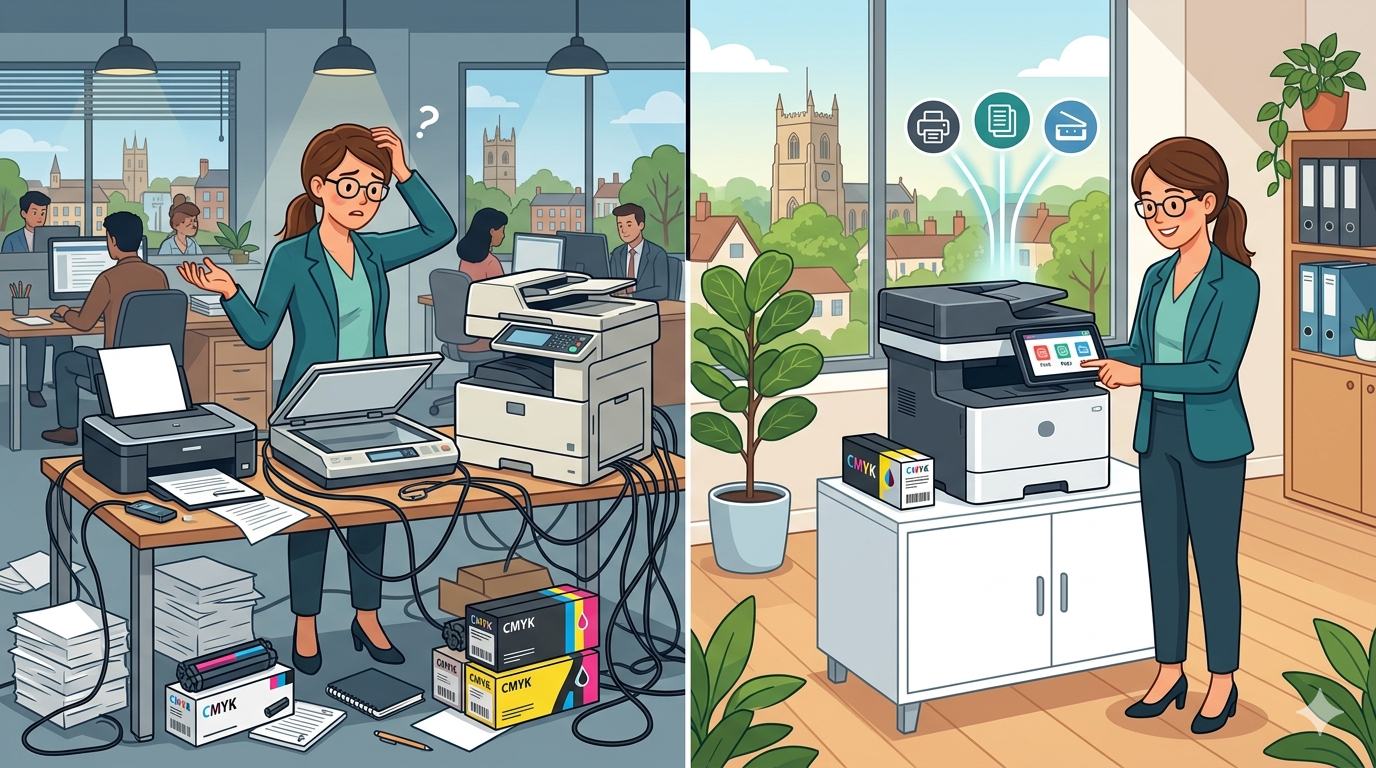
Look around your office. How many devices are hiding in corners, gathering dust, eating electricity, and demanding attention?
A printer here. A copier there. A scanner in the corner that no one uses because it’s too complicated. A fax machine that hasn’t been touched since 2005.
Each device takes up space. Each device needs its own supplies. Each device has its own service contract (or none). Each device frustrates your team in its own special way.
There’s a better way.
A multifunctional printer (or multifunction device) combines printing, copying, scanning, and often faxing into one machine. It does everything those three or four separate devices do, but better, faster, and cheaper.
In this article, I’ll walk you through why your business should invest in a multifunctional printer. The cost savings. The space savings. The productivity gains. And the surprisingly simple transition.
Let’s dive in.
Part One: What Is a Multifunctional Printer? (In Plain English)
Let me explain without the jargon.
A multifunctional printer (MFP) is one machine that does what used to require three or four separate devices:
| Function | What it does | Standalone alternative |
| Prints documents from computers, phones, tablets | Printer | |
| Copy | Makes physical copies of physical documents | Copier |
| Scan | Converts physical documents to digital files (PDF, JPEG, etc.) | Scanner |
| Fax | Sends and receives faxes (if you still need this) | Fax machine |
Most MFPs also include:
- Double-sided printing (saves paper)
- Automatic document feeder (scan/copy stacks of paper automatically)
- Network connectivity (everyone can use it)
- Mobile printing (print from phones and tablets)
- Scan-to-email and scan-to-cloud
In short: one machine. One plug. One service contract. Dozens of functions.
Part Two: The Case for Multifunctional Printers
Why should you consider consolidating your devices? Let me give you five compelling reasons.
Reason 1: Lower Costs
This is the headline benefit. And it’s not just about buying one machine instead of three.
Where you save:
| Cost category | Multiple devices | One MFP |
| Upfront equipment | £500-1,500 (printer + copier + scanner) per device | £500-1,500 upwards (one device) |
| Toner/ink | Different cartridges for each device | One type of cartridge |
| Service contracts | Multiple contracts, multiple providers | One contract, one provider |
| Energy consumption | 3-4 devices running 24/7 | 1 device running 24/7 |
| Space (rent) | Multiple devices taking up floor or desk space | One device, smaller footprint |
| Staff time | Learn multiple interfaces, troubleshoot multiple devices | Learn one interface, one set of troubleshooting |
Real maths: A small business with separate printer, copier, and scanner might spend £800 on equipment, £300 per year on different toners, and £200 per year on separate service checks. An MFP might cost £600 upfront, £150 per year on toner, and £100 per year on service. That’s a 30-50% annual saving.
Reason 2: Space Savings
Office space is expensive. Every square metre costs you in rent, rates, and heating.
| Device setup | Approximate footprint |
| Printer (desktop) | 0.5 sq m |
| Copier (floor-standing) | 1.5 sq m |
| Scanner (desktop) | 0.3 sq m |
| Total separate devices | 2.3 sq m |
| MFP (floor-standing) | 0.8-1.2 sq m |
| Space saved | 1.1-1.5 sq m (50%+) |
That space can be used for another desk, a meeting table, or simply a less cluttered office.
Pro tip: For smaller offices, desktop MFPs are available that take up even less space.
Reason 3: Improved Productivity
Every time your team has to walk to a different device, you lose time. Every time they have to learn a different interface, you lose focus.
With separate devices:
- Print document on printer
- Walk to copier to make copies
- Walk to scanner to digitise the signed version
- Email the scan from your computer
With an MFP:
- Print document
- Copy at the same device
- Scan to email directly from the device
That’s fewer steps. Fewer walks across the office. Fewer context switches. Less frustration.
Time saved: For a busy office, consolidating to an MFP can save each person 5-10 minutes per day. For a 10-person office, that’s nearly an hour per day, 5 hours per week, 250 hours per year.
Reason 4: Simplified Management
Managing multiple devices is a headache.
| Task | Multiple devices | One MFP |
| Ordering supplies | Different toners for each device | One toner type |
| Service calls | Different providers, different SLAs | One provider, one number to call |
| Staff training | Learn printer, copier, scanner interfaces | Learn one interface |
| IT setup | Install printer drivers, scanner drivers, copier network settings | Install one device |
| Security | Secure each device individually | Secure one device |
Pro tip: With one device, you only have one number to call when something goes wrong. Your team will thank you.
Reason 5: Better Features at Lower Cost
You might think an MFP is a compromise, a “jack of all trades, master of none.”
That’s not true anymore. Modern MFPs often outperform standalone devices in their core functions.
| Feature | Standalone | MFP |
| Print speed | Variable | Competitive (often faster) |
| Scan speed | Often slow (10-20 ppm) | Fast (30-50+ ppm) |
| Scan-to-email | Often basic or missing | Built-in, one-touch |
| Automatic document feeder | Often not included | Standard on most |
| Double-sided printing | Not always standard | Standard on most |
| Mobile printing | Sometimes, often clunky | Built-in, easy |
| Cloud connectivity | Rare | Common |
Pro tip: The scanning capabilities on modern MFPs are particularly impressive. What used to take minutes (feed one page, scan, save, repeat) now takes seconds (feed stack, press button, done).
Part Three: Features to Look For
Not all MFPs are created equal. Here’s what to prioritise.
Essential Features (Don’t Compromise)
| Feature | Why it matters |
| Automatic document feeder (ADF) | Scan or copy stacks of paper without manual feeding |
| Double-sided (duplex) printing | Cuts paper use in half |
| Network ready (Ethernet) | Everyone can use it (Wi-Fi is less reliable for busy offices) |
| Scan-to-email | Send scans directly from the device |
| Easy-to-use touchscreen | Your team will actually use it |
Nice-to-Have Features (Worth Considering)
| Feature | Why it matters |
| Scan-to-cloud | Direct to Google Drive, SharePoint, Dropbox |
| Mobile printing | Print from phones and tablets |
| Secure print release | Confidential documents only print when you authenticate |
| Finishing options | Stapling, hole punching, booklet making |
| Large paper capacity | Fewer refills, less interruption |
Features You Probably Don’t Need
| Feature | Why you can skip it |
| Fax | Most businesses don’t need it. If you do, it’s usually an option. |
| Extremely high speed (50+ ppm) | Unnecessary for most offices under 20 people |
| Professional colour | Unless you’re a design or marketing agency, standard colour is fine |
Part Four: Right-Sizing Your MFP
The most common mistake is buying too much machine (paying for features you don’t need) or too little (a desktop MFP that can’t handle your volume).
Match the Machine to Your Monthly Print Volume
| Office size | Monthly pages | Recommended MFP type | Approximate cost |
| 1-5 people | Under 500 | Desktop MFP (laser) | £200-400 |
| 6-15 people | 500-2,000 | Small floor-standing MFP | £500-1,000 |
| 16-30 people | 2,000-5,000 | Mid-size floor-standing MFP | £1,000-2,500 |
| 30+ people | 5,000+ | Large floor-standing MFP or multiple devices | £2,500-6,000+ |
Pro tip: Look at the machine’s “duty cycle” (maximum pages per month). Choose one with a duty cycle 2-3 times your actual volume. That gives you headroom and ensures reliability.
Colour vs Monochrome
| If you print… | Choose… |
| Mostly internal documents, forms, text | Monochrome (black and white only), cheaper to buy, cheaper to run |
| Client-facing materials, presentations, marketing | Colour, worth the extra cost |
| A mix (some colour, mostly black) | Colour, but set black and white as default |
Pro tip: Many businesses buy colour MFPs but set black and white as the default. Colour requires a manual override. This gives you flexibility without wasting expensive colour toner on internal drafts.
Part Five: Buy vs Lease
You have two options: buy outright or lease.
| Factor | Buy outright | Lease |
| Upfront cost | Higher (£500-6,000+) | Low or zero |
| Monthly cost | None (after purchase) | Fixed monthly payment |
| Total cost over 3 years | Lower (you own the asset) | Higher (you’re renting) |
| Maintenance | You pay for service separately | Often included |
| Toner | You buy toner separately | Often included |
| Upgrading | You sell old, buy new | Return and upgrade at end of term |
| Tax treatment | Capital expense (depreciation) | Operating expense (fully deductible) |
Our recommendation:
- Buy outright if: You have the cash flow, want the lowest long-term cost, and plan to keep the machine for 5+ years.
- Lease if: You want predictable monthly costs, prefer to include service and toner, and want flexibility to upgrade every 3-5 years.
Pro tip: For most small and medium businesses, a lease with a managed print contract (including service and toner) is the simplest, most predictable option. You pay one monthly fee and never get surprise bills.
Part Six: Real Examples
Here are a few examples of businesses that benefited from switching to an MFP.
Example 1: The Space Saver
A small business had a printer on a desk, a copier on a filing cabinet, and a scanner on a shelf. Their office was cluttered. They couldn’t add another desk.
The fix: They replaced all three with a single desktop MFP. It sat on a small stand in the corner.
The result: They gained enough space for an extra desk, and a new team member.
Example 2: The Time Saver
A professional services firm had separate devices on different floors. Staff walked between floors to print, copy, and scan. It wasn’t a huge distance, but it added up.
The fix: They replaced the devices with one MFP on each floor (two total). Each machine did everything.
The result: Staff estimated they saved 15 minutes per day, each. For a 15-person firm, that’s nearly 4 hours per day, 20 hours per week.
Example 3: The Service Nightmare
A small business had a printer from one brand, a copier from another, and a scanner from a third. Each had a different service provider. When something went wrong, they didn’t know who to call.
The fix: They replaced all three with one MFP from one provider, with one service contract.
The result: One number to call. One technician to deal with. The office manager estimated she saved 2 hours per month on service coordination.
Example 4: The Scanning Breakthrough
A busy office avoided scanning because their standalone scanner was slow and clunky. It took 30 seconds per page. Staff would rather keep paper files than deal with it.
The fix: Their new MFP had a fast automatic document feeder (40 pages per minute). Scanning a 10-page document took 15 seconds.
The result: Suddenly, scanning wasn’t a chore. The office went from paper-heavy to paper-light within months.
Part Seven: Making the Switch
Worried about transition? Here’s a simple plan.
Step 1: Audit What You Have
List every device that prints, copies, scans, or faxes. Note:
- Age of each device
- Approximate monthly usage
- What you like and hate about each
- What you spend on supplies and service
Step 2: Calculate Your True Costs
Add up what you spend on:
- Equipment (amortised over its life)
- Toner and supplies
- Service contracts and repairs
- Staff time (estimate roughly)
This is your baseline.
Step 3: Right-Size Your MFP
Based on your monthly volume and office size, identify the right class of MFP (desktop, small floor-standing, mid-size).
Step 4: Get Quotes
Talk to 2-3 suppliers. Compare:
- Upfront cost (or lease monthly)
- Toner costs (cost per page)
- Service contract options (included or extra)
- Features included
Step 5: Calculate Your Payback
Compare your current costs to the MFP costs. How long will it take to recover the investment?
Example:
- Current annual cost (multiple devices): £1,200
- New MFP annual cost (lease + toner + service): £900
- Annual saving: £300
- Upfront cost (if buying): £800
- Payback period: 2-3 years
Step 6: Plan the Transition
- Choose a quiet time (not month-end or quarter-end)
- Give your team a heads-up (new device coming, training provided)
- Remove old devices (recycle or donate responsibly)
- Install new MFP
- Train your team (30 minutes is usually enough)
Final Thoughts
A multifunctional printer does what used to require three or four separate devices. It prints. It copies. It scans. Sometimes it faxes.
The benefits are clear: lower costs, less space, improved productivity, simpler management, and better features.
You don’t need to be a large enterprise to benefit. Even small offices can save money and reduce frustration with a desktop MFP.
Start with an audit of what you have. Calculate your true costs. Right-size the machine. Get quotes. Make the switch.
Your team will thank you. Your budget will thank you. And you’ll wonder why you waited so long.
If you’d like a friendly, no-pressure chat about multifunctional printers, whether that’s help right-sizing, comparing options, or just honest advice, just reach out.
We’re independent. We’re here to help. And we won’t sell you things you don’t need.