

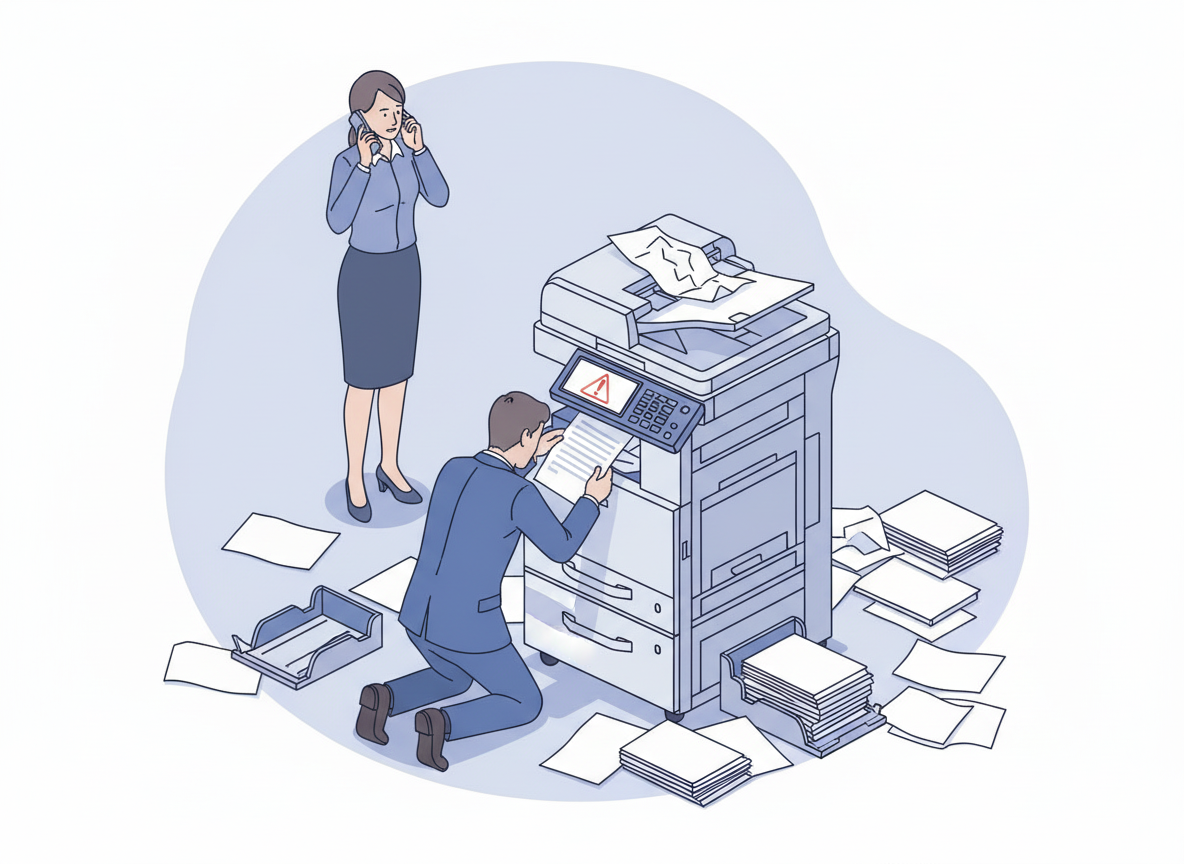
It always happens at the worst possible moment. You are up against a deadline, the client is waiting, and the office copier, the one piece of equipment you rely on to produce contracts, proposals, and presentations, decides to stop working. The screen flashes an error code you have never seen before. The machine emits a sound you cannot identify. And suddenly, everything grinds to a halt.
A copier breakdown is stressful, but it does not have to be chaotic. How you respond in the first few minutes can mean the difference between a minor disruption and a full-blown operational crisis. A structured, step-by-step approach will get you back up and running faster, minimise lost productivity, and potentially save you from expensive emergency repairs.
Based on insights from service technicians and facilities management professionals, here is a comprehensive, step-by-step guide to handling a copier breakdown with calm, clarity, and efficiency.
Step 1: Don’t Panic, Assess the Situation
When the machine stops working, your first instinct might be to hit buttons randomly, turn it off and on again repeatedly, or call the first technician you can find. Resist that urge. The first step is to take a breath and assess what is actually happening.
- What to Do:
- Stop using the machine immediately. Continuing to force jobs through a malfunctioning device can cause further damage.
- Observe carefully. What exactly is happening? Is there an error code on the screen? Is the machine making an unusual noise? Is it completely dead, or is it responding slowly? Is there a smell of burning or overheating?
- Note the context. What were you doing when it failed? Were you printing a large document? Scanning a multi-page file? Clearing a paper jam? This context is valuable information for whoever helps you.
- What Not to Do:
- Do not restart repeatedly. Restarting a machine that is mid-failure can sometimes make things worse, especially if the failure is related to a stuck component or a failing hard drive.
- Do not attempt to dismantle anything. Unless you have been trained, opening panels and removing parts you do not understand can void warranties or create new problems.
Why It Matters: Accurate information is the foundation of a fast fix. The more detail you can provide to your service provider, the faster they can diagnose and resolve the issue.
Step 2: Check the Obvious (The User-Serviceable Fixes)
Before you call for help, spend two minutes checking the most common, and easily resolved, issues. A significant percentage of copier “breakdowns” are actually simple problems that anyone in the office can fix.
- The Quick Checklist:
- Is it plugged in? It sounds absurd, but power cords get kicked, surge protectors get switched off, and plugs work loose. Check the wall socket and the back of the machine.
- Is the network cable connected? If the machine appears on but won’t print from computers, the network cable may have been knocked loose.
- Is there paper in the tray? An empty paper tray is the most common “breakdown” of all. Check all trays, including bypass trays.
- Is there a jam? Open all access panels and check for any visible paper scraps. Sometimes a tiny piece of torn paper can trigger a persistent error.
- Is the toner out? A machine that has run completely out of toner will refuse to print. Check the toner levels via the control panel.
- Is the waste toner bottle full? Many copiers have a waste toner bottle that, when full, will stop all operations until emptied or replaced.
- What Other Companies Do:
They have a simple laminated checklist taped to the machine or stored nearby. Anyone in the office can run through it before calling for help. This simple practice reduces unnecessary service calls and empowers staff to resolve minor issues independently.
Why It Matters: If you can resolve the issue in two minutes, you have saved yourself the cost of a service call and the downtime waiting for a technician to arrive.
Step 3: Record the Error Code
If the machine is displaying an error code on its screen, write it down immediately. Error codes are the machine’s way of telling you, and your technician, exactly what is wrong.
- What to Do:
- Write the code down exactly. Include any letters, numbers, and punctuation exactly as they appear. For example, “C-ABCD” or “E-0102.”
- Note whether the code is persistent. Does it appear as soon as the machine starts? Does it only appear when you try a specific function (like scanning)?
- Take a photo. If you have a smartphone, take a clear picture of the screen showing the error code. This is invaluable for the technician.
- Common Error Code Categories:
- C-Codes: Usually related to the imaging system (drum, developer, toner).
- E-Codes: Often paper jams or paper feed issues.
- F-Codes: Typically firmware or software-related.
- J-Codes: Almost always paper jams or sensor issues.
Why It Matters: A technician armed with the exact error code can arrive with the correct parts and a clear diagnosis. Without it, they must spend time diagnosing on-site, which extends downtime and may require a second visit if they don’t have the right parts.
Step 4: Identify Whether It Is Hardware or Network
If the machine is displaying error codes but otherwise seems to function, the problem may be network-related rather than a hardware failure. Distinguishing between the two can save significant time.
- Hardware Issue Signs:
- The machine makes unusual noises (grinding, screeching, clicking).
- There is a burning or acrid smell.
- Print quality is consistently poor across all functions.
- The machine will not power on at all.
- It jams consistently with any paper type.
- Network Issue Signs:
- The machine powers on and appears to function, but computers cannot see it on the network.
- Some users can print, but others cannot.
- Scanning to email or network folders fails consistently.
- The machine intermittently disappears and reappears on the network.
- Quick Network Test:
- Try to print a configuration or status page directly from the machine’s control panel. If that works, the machine’s internal printing functions are fine. The issue is likely network or driver-related.
- Ask another user to try printing. If only one user is affected, the problem is likely on that user’s computer (driver issue). If no one can print, the issue is with the machine or the central network connection.
Why It Matters: A network issue may be resolvable by your internal IT person or even by rebooting your network switch. A hardware issue requires a trained technician. Knowing which you are dealing with directs you to the right help.
Step 5: Decide: In-House Fix or Call for Service?
Once you have gathered information, you need to decide whether this is something your team can handle or whether you need to call in a professional.
| Situation | Action |
| Empty paper tray | Refill. You are done. |
| Toner out | Replace cartridge. You are done. |
| Simple paper jam (visible paper) | Clear gently. If it recurs, note for technician. |
| Error code with no other symptoms | Call service provider. Provide code. |
| Unusual noises or burning smell | Power off immediately. Call for emergency service. |
| No power | Check socket and fuse. If still dead, call service. |
| Network issues | Involve your IT person or provider. |
- The “One Reboot” Rule:
It is generally safe to reboot the machine once. Turn it off at the wall, wait 30 seconds, and turn it back on. Sometimes a temporary glitch clears with a restart. If the problem returns, it is time to call for service.
Why It Matters: Calling for service unnecessarily costs money. Delaying a call when it is clearly needed costs more in downtime and potential damage. A clear decision-making framework saves both.
Step 6: Contact Your Service Provider (With All the Facts)
When you do make the call, be prepared. The quality of information you provide directly affects the speed and success of the response.
- What to Have Ready Before You Call:
- The machine make and model. This is usually on a label on the front or back of the device.
- The exact error code (and a photo if possible).
- A clear description of what happened leading up to the failure.
- Whether the issue is persistent or intermittent.
- Any steps you have already taken (reboot, checked trays, etc.).
- Your service contract or warranty number (if applicable).
- What to Ask the Service Provider:
- What is the expected response time? (Is it same-day? Next-day?)
- Will the technician need access to anything specific? (Network credentials, keys, etc.)
- Should you leave the machine on or turn it off?
- Is there a temporary workaround? (Can you still scan to USB? Can you print from a specific tray?)
Why It Matters: A well-prepared call gets you to the front of the queue. The technician arrives with the right parts and a clear plan, minimising downtime and avoiding repeat visits.
Step 7: Implement a Workaround While You Wait
Even with the fastest service response, you may face hours, or in some cases, a day or more, without your primary copier. Having a contingency plan prevents your business from grinding to a halt.
- Immediate Workarounds:
- Identify a backup printer. Does another department have a machine you can use for urgent jobs?
- Use a local print shop. For high-volume or high-quality jobs, a local print shop can be a lifesaver. Build a relationship with one before you need them.
- Scan to USB or email. If the print function is down but scanning works, scan documents to USB or email for printing elsewhere.
- Leverage e-signatures. If the breakdown is preventing you from printing contracts for wet signatures, use this as an opportunity to shift to an e-signature platform like DocuSign or HelloSign. Many small businesses find that a copier breakdown becomes the catalyst for finally embracing digital workflows.
- Communicate with Your Team:
- Send a brief email or message to everyone in the office: “The main copier is down. Technician is on the way. For urgent prints, please use the printer in the back office. For scanning, please use the USB option. We will update you when service is complete.”
Why It Matters: A workaround keeps your business moving. Clear communication prevents the confusion and frustration that can arise when employees arrive at a dead machine with no plan.
Step 8: When the Technician Arrives
The technician’s visit is your opportunity to get the machine fixed correctly and to gather information that can prevent future breakdowns.
- What to Do:
- Provide access. Ensure the technician can reach the machine, has access to network cables if needed, and can work without interruption.
- Show the error code. If you took a photo, show them. If you kept a log of the problem, hand it over.
- Ask questions. While the technician is there, ask:
- “What caused this?” (So you can avoid it in future)
- “Are there any other parts nearing end-of-life?” (So you can schedule preventive maintenance)
- “Is there anything we should be doing differently?” (Paper type? Cleaning routine?)
- Get documentation. Ask for a service report detailing what was repaired, what parts were replaced, and any recommendations.
- Test Before They Leave:
- Once the technician says the machine is fixed, test it yourself. Run a print job, a scan, and a copy. Ensure the issue is fully resolved before they pack up.
Why It Matters: A few minutes of questions while the technician is on-site can yield insights that prevent future breakdowns. A signed-off service report provides documentation for warranty purposes and helps you track the machine’s health over time.
Step 9: After the Breakdown: Review and Improve
A copier breakdown is a disruption, but it is also an opportunity. Once the crisis has passed, take a few minutes to reflect on what happened and whether changes could prevent a recurrence.
- Questions to Ask:
- Was this preventable? Could regular maintenance have caught this issue earlier?
- Is the machine ageing? If this is the third major breakdown in a year, it may be time to consider replacement rather than continued repairs.
- Are we using the machine appropriately? If you are consistently exceeding the machine’s recommended monthly volume, you may need a more robust device.
- Could we reduce reliance on this machine? Is this another nudge toward digital workflows, e-signatures, and cloud storage that could reduce the need for printing altogether?
- Update Your Records:
- Add the breakdown to your equipment log. Note the date, the issue, the repair performed, and the cost. This history helps you make informed decisions about replacement and maintenance going forward.
Why It Matters: A breakdown that is not learned from is a breakdown that will happen again. A proactive review turns a disruption into a strategic improvement.
Bonus: Building a Long-Term Strategy to Minimise Breakdowns
While this guide focuses on handling a breakdown when it happens, the best strategy is to minimise the likelihood of breakdowns in the first place.
- Invest in Regular Preventive Maintenance:
The small, predictable cost of scheduled service visits is far less than the large, unpredictable cost of emergency repairs and downtime. - Consider Managed Print Services (MPS):
Under an MPS agreement, your service provider takes full responsibility for the health of your printing equipment. They monitor usage, dispatch supplies before you run out, and perform maintenance proactively. - Match the Machine to Your Volume:
One of the leading causes of breakdowns is using a machine beyond its recommended duty cycle. If your small business is printing 10,000 pages a month on a machine rated for 5,000, breakdowns are inevitable. - Train Your Team:
Ensure that everyone knows how to clear jams gently, how to load paper correctly, and how to report issues before they become crises. A small investment in training pays dividends in reduced service calls. - Embrace Digital Alternatives:
Every page you do not print is a page that cannot cause a jam, waste toner, or trigger a breakdown. As more businesses adopt e-signatures, cloud storage, and digital workflows, they reduce their reliance on physical printing, and the breakdowns that come with it.
The Bottom Line
A copier breakdown is never convenient, but it does not have to be a disaster. By following a clear, step-by-step process, assess, check the obvious, record the error, diagnose, decide, call prepared, implement workarounds, learn from the visit, and review for improvement, you can minimise disruption, control costs, and turn a stressful situation into a manageable one.
And in the longer term, by investing in preventive maintenance, considering managed print services, and embracing digital alternatives, you can reduce the frequency of breakdowns and ensure that when you do need to print, the machine is ready to perform.